

What Effects does
When you upload a reference image, ImagineArt analyzes the visual effects and treatments applied to it — the way light interacts with the scene, the texture overlays, the depth-of-field characteristics, and any stylistic post-processing. These qualities are then applied to the image your prompt generates, giving your output a treated, finished look without any manual editing. This is valuable when you have a specific “finished” look in mind and want to apply it consistently — for example, matching the cinematic grade of a film still, replicating the grain and fading of an analog photograph, or carrying a specific glow or atmospheric haze across a set of images.How to use Effects
1
Open Add References
In the image generation panel, click Add References to open the references modal.
2
Select Effects
Choose the Effects tab from the six available reference types.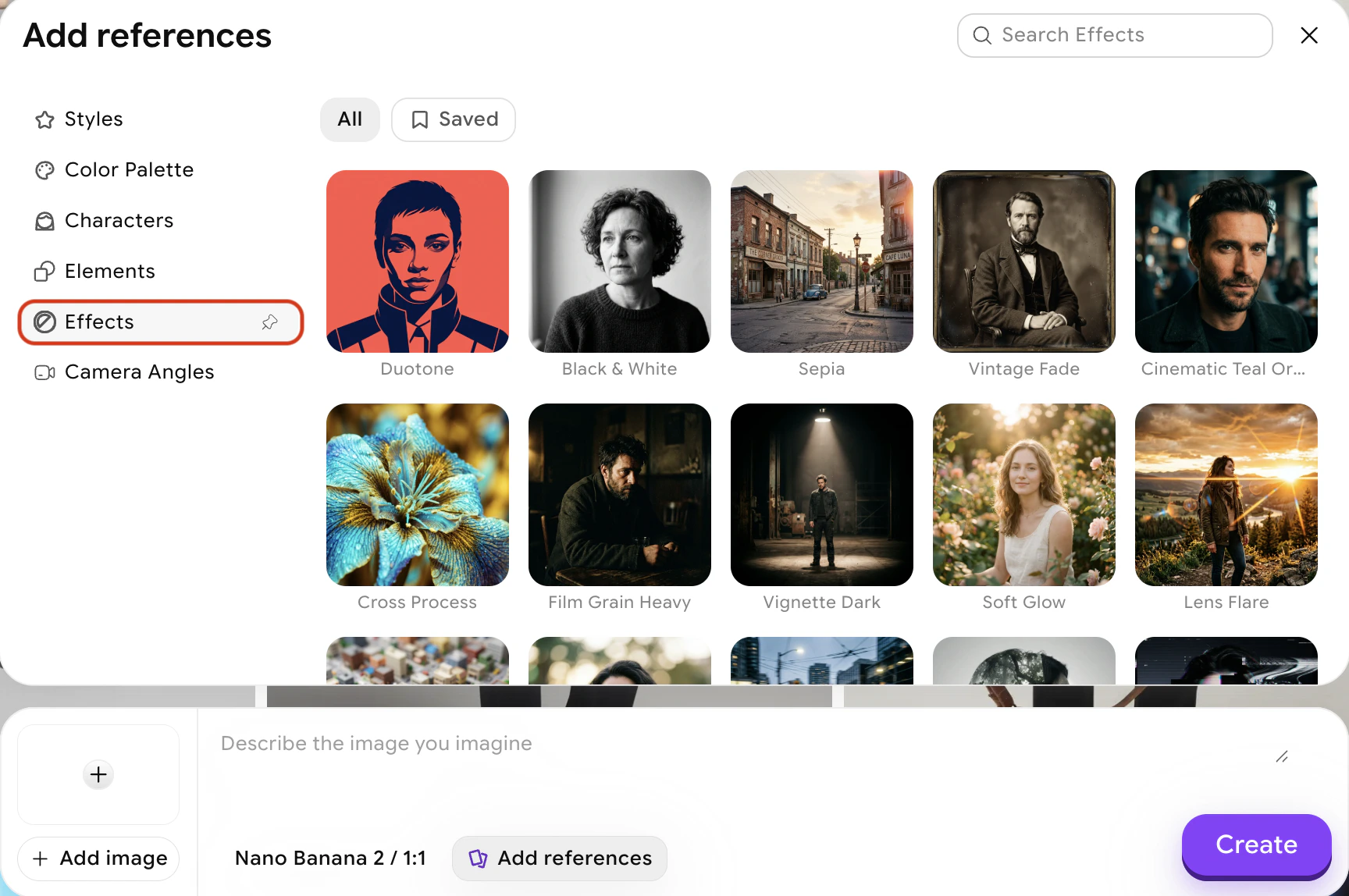
3
Choose an effect
Browse and select from the available effects.
4
Generate
Describe the scene or subject you want to generate. Click Create. The AI will generate your described scene with the visual effects from your reference applied.
Tips for better results
- Combine Effects with Style — Effects handles the treatment layer; Style handles the overall aesthetic. Together they give you comprehensive visual control.