

Four ways to add audio
1
Open Add Audio
In the Create Video tab, click Add Audio on the timeline (next to your scenes). This opens a menu with four options: AI Music, Text to Speech, Select from Library, and Upload.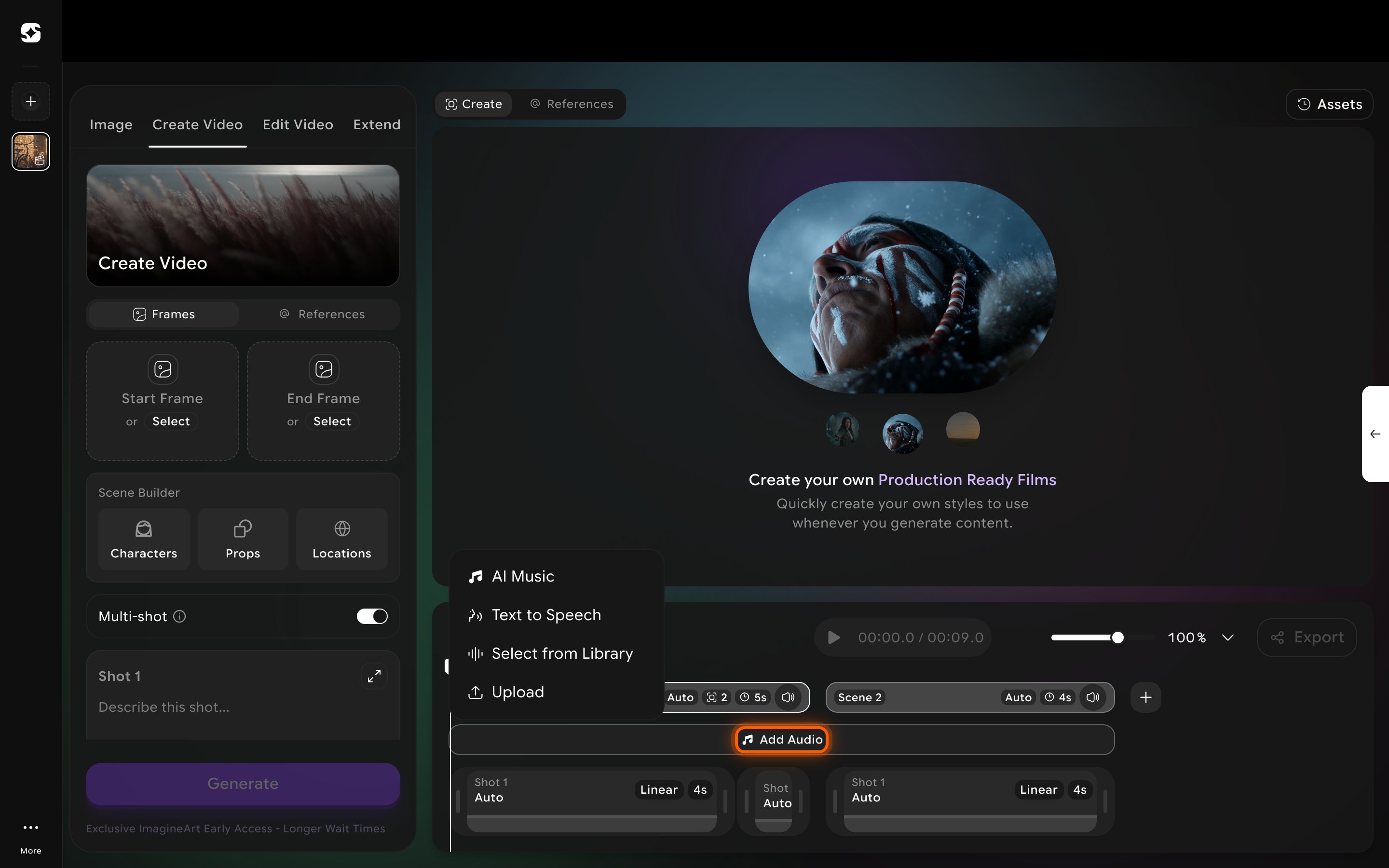
2
Generate a soundtrack with AI Music
Choose AI Music to open the music dialog. Select model defaults to ElevenLabs Music 2.5; you can also pick ElevenLabs Music. Describe what you want to hear in Music Description, optionally turn on Instrumental to skip vocals, pick a Style preset (e.g. “Dark Cinematic”), and set a Duration. Click Generate to add the track to your timeline.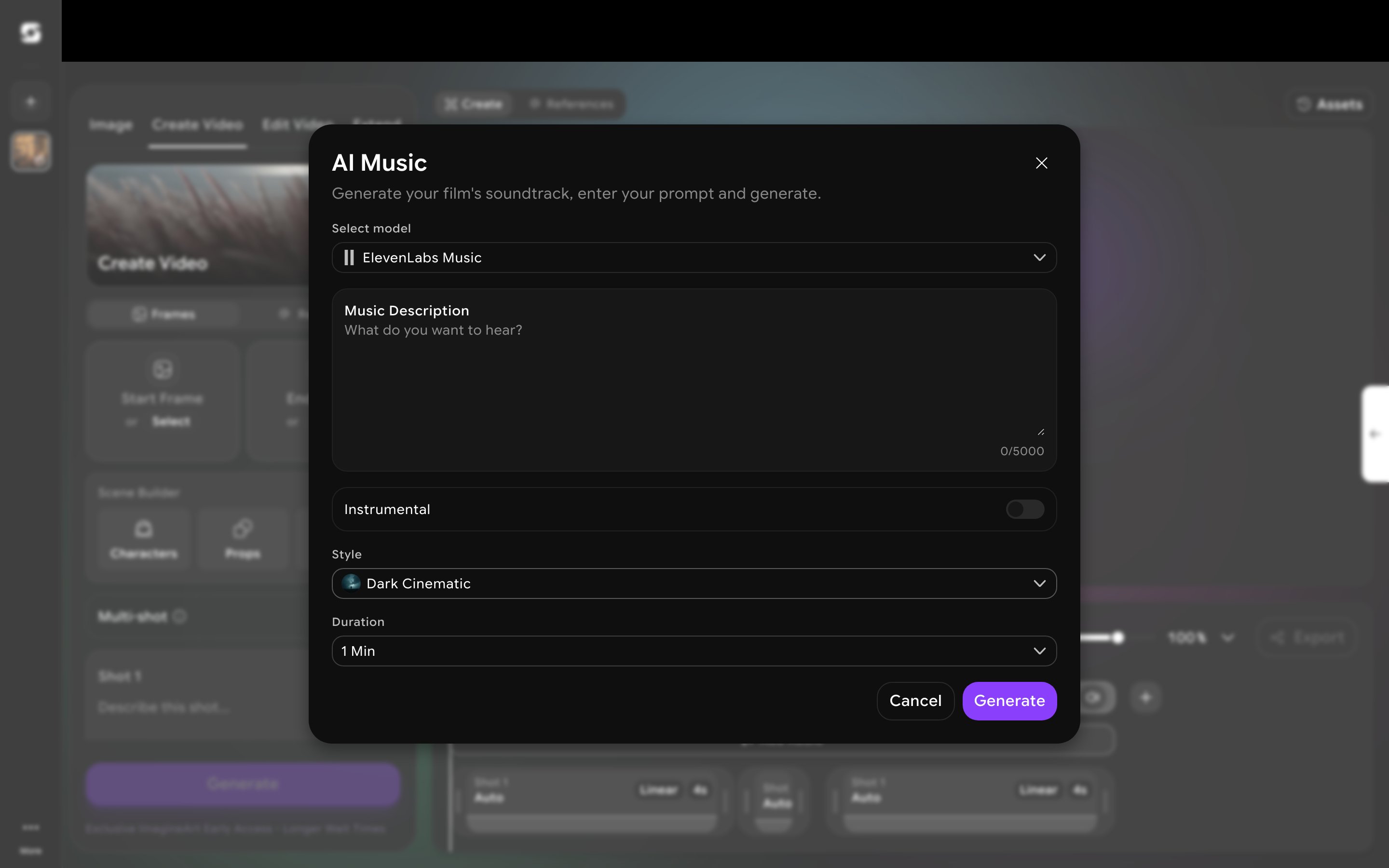
3
Generate narration with Text to Speech
Choose Text to Speech to open the narration dialog. Select model defaults to ElevenLabs v3; the other options are MiniMax Speech 2.8 HD, MiniMax Speech 2.8 Turbo, ElevenLabs v4, and ElevenLabs v4 turbo. Type your narration into Speech, or click AI Writer to have it drafted for you. Pick a voice from Select voice, and optionally expand Parameters to adjust Stability (how consistent the voice sounds versus more expressive and variable). Click Generate to add the narration to your timeline.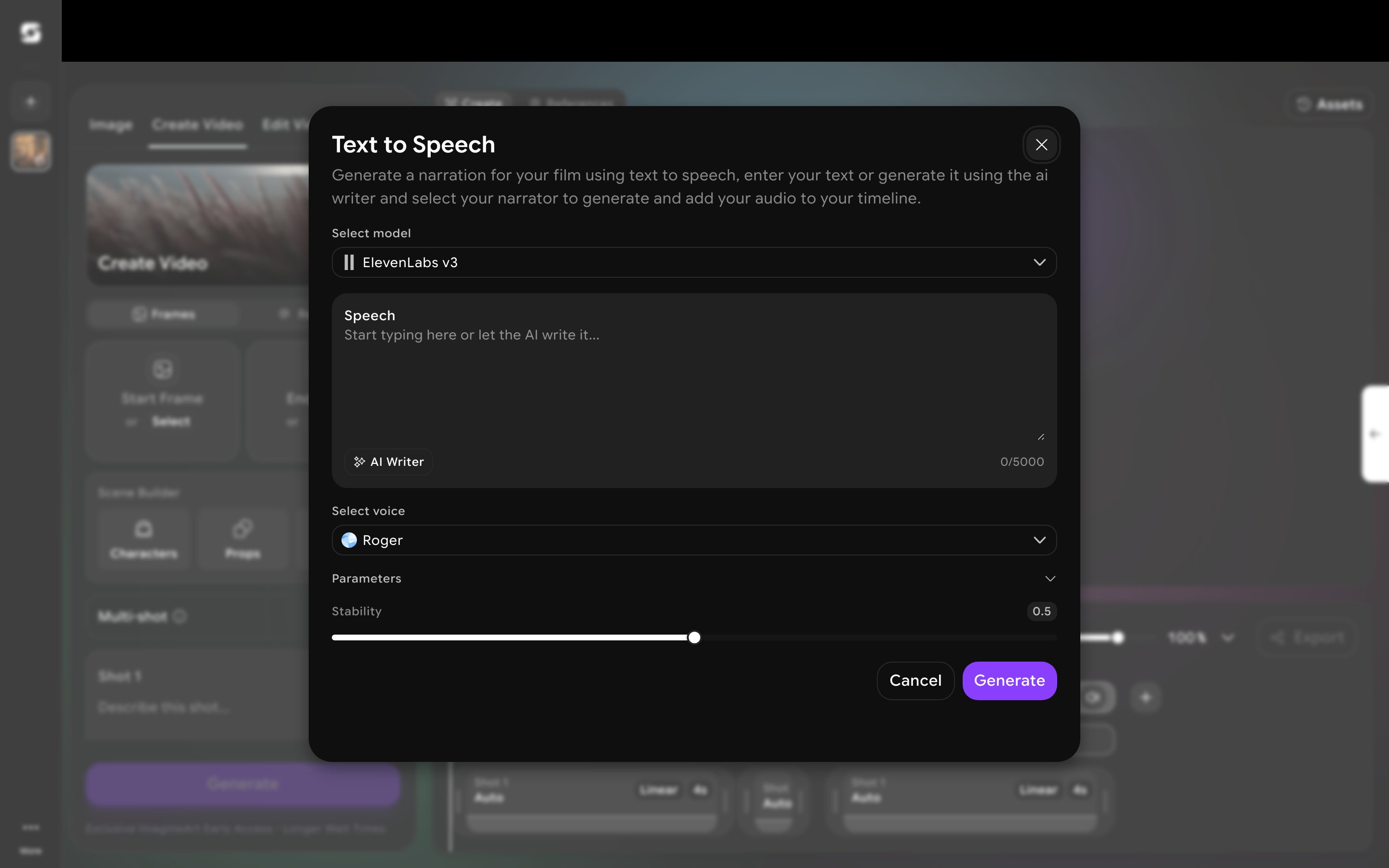
4
Or reuse existing audio
Select from Library pulls in an audio reference you’ve already added to the project’s References library. Upload lets you bring in your own audio file directly.
Audio you generate or add here sits on the timeline alongside your video scenes — it isn’t the same as attaching an Audio reference in the References library, which is for reusing a voice, track, or sound effect as an influence across multiple scenes rather than placing actual audio on the timeline.