

Single-shot videos
A single-shot video is one continuous clip generated from one prompt. This is the right starting point when you want a quick result, when your idea is one moment rather than a sequence, or when you are testing how a particular look behaves in motion.How to make a single-shot video
1
Open Create Video
Open the Create Video tab in your project.
2
Upload start and end frames (optional)
Optionally upload a start frame and an end frame. The system will treat these as the bookends of your shot.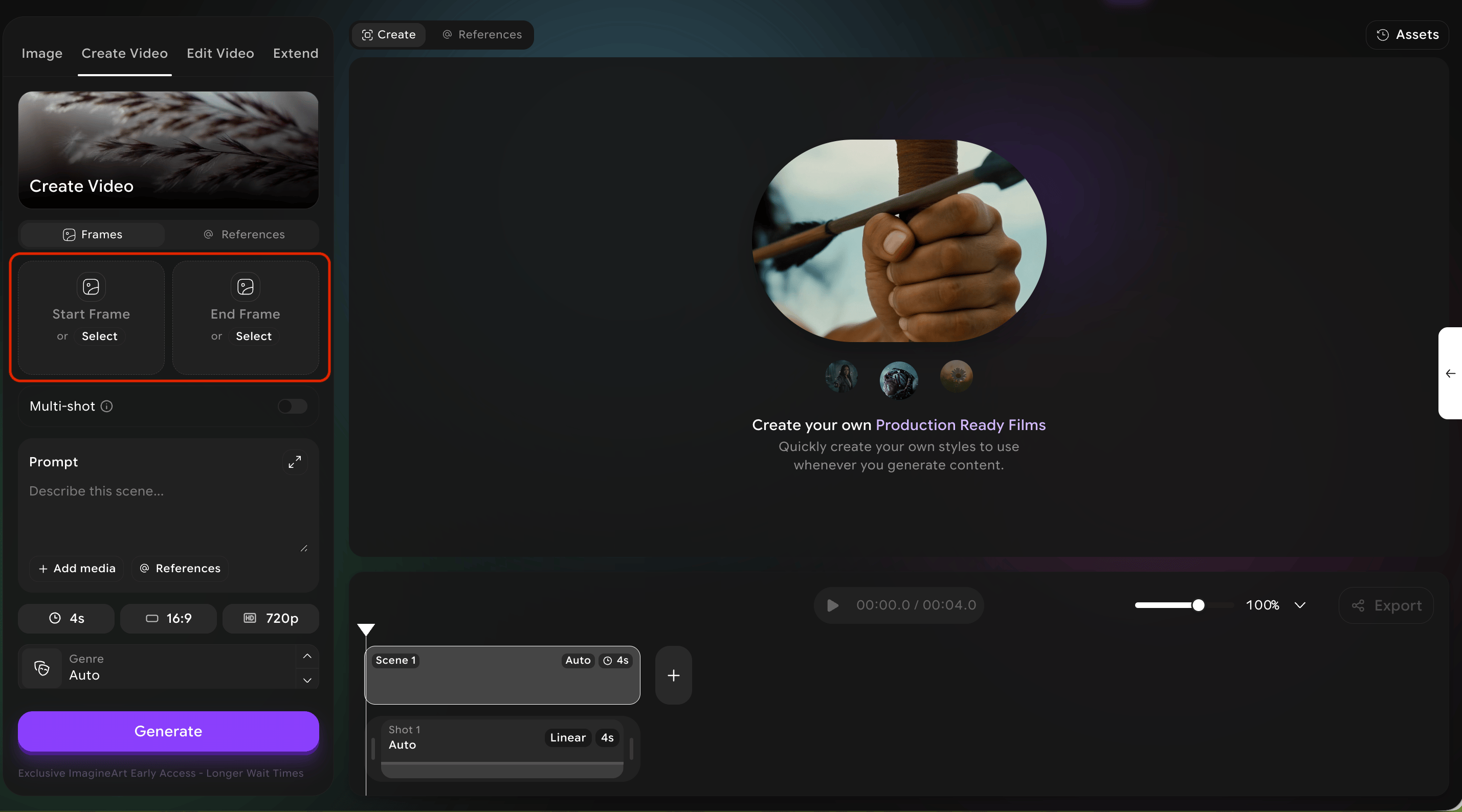
3
Add reference images (optional)
Optionally add reference images using the Add media button. References influence style without dictating exact content.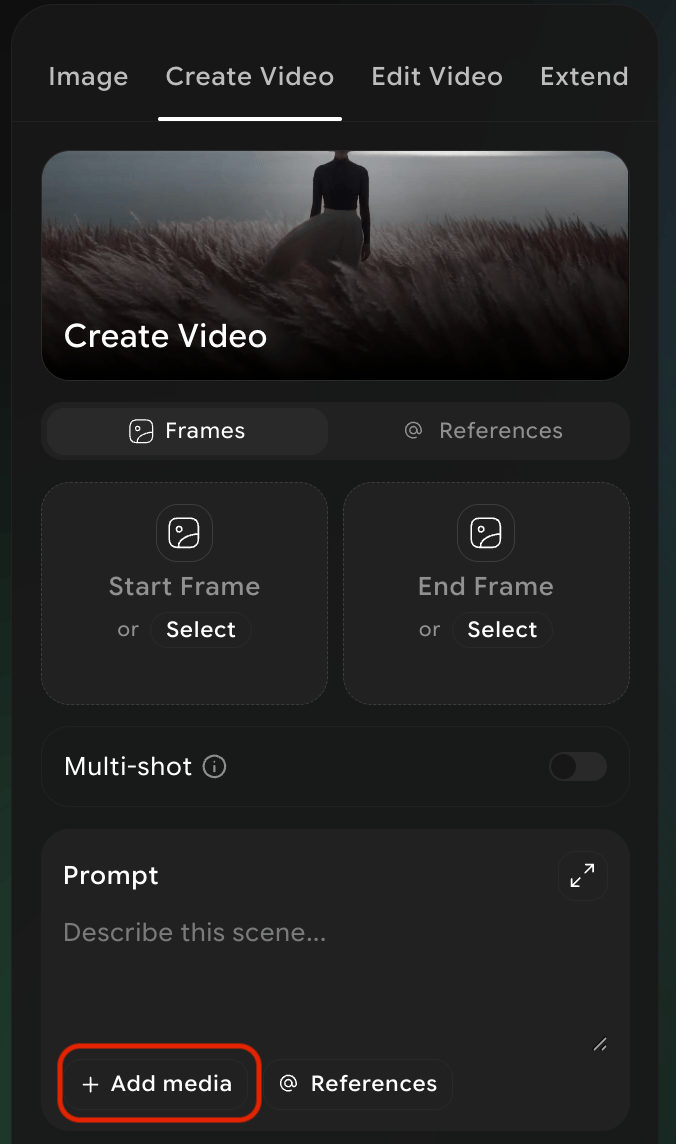
4
Write your prompt
Write your prompt. Describe subject, action, setting, and mood.
5
Set cinematic controls
Set the cinematic controls (genre, camera movement, speed ramp, camera/lens/focal/aperture).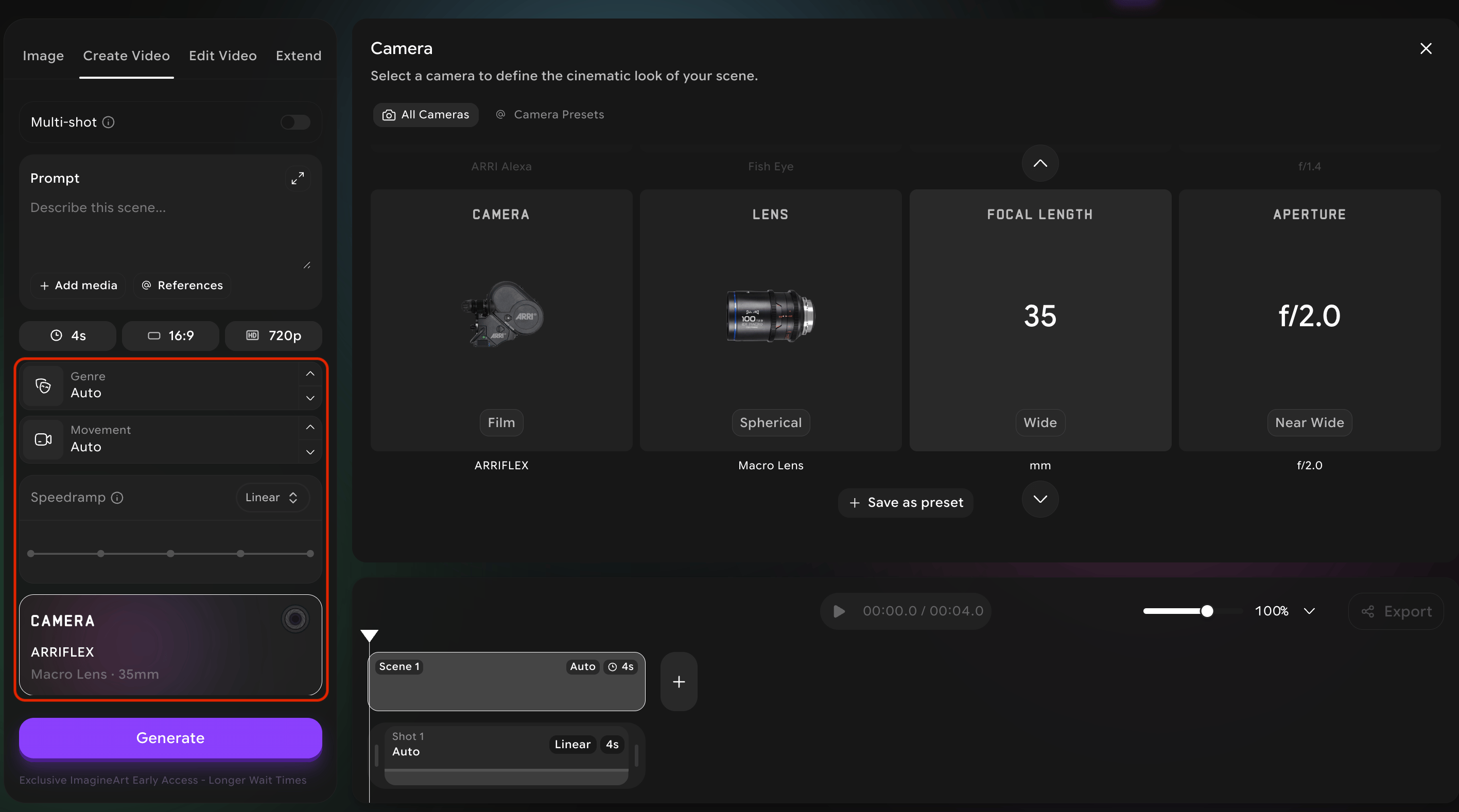
6
Generate
Hit Generate.
Output settings
Aspect ratio and resolution live alongside the cinematic controls. Create Video’s options are narrower than Create Image’s — don’t assume the two tabs match:4K is available for still images in the Image tab, but not for video generation here.
Multi-shot videos
A multi-shot video is a single piece of footage made up of several distinct shots that the system will stitch together into one continuous film. This is how you build a sequence — a scene followed by a closeup followed by a wide reveal — without combining clips manually.Max shots per video
5 shots per video
Max total length
15 seconds total
How to build a multi-shot video
1
Switch to multi-shot mode
Open the Create Video tab and switch to multi-shot mode.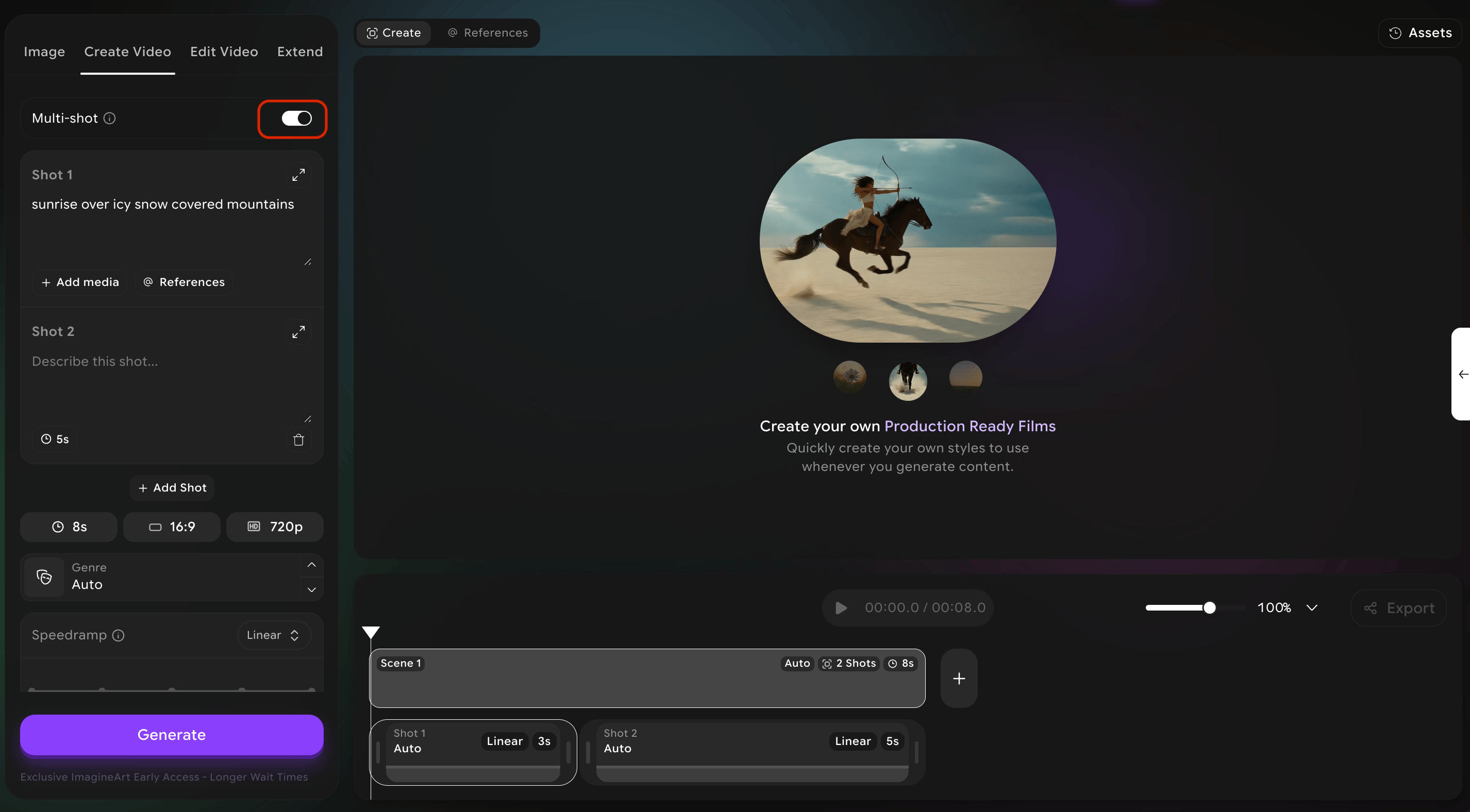
2
Write a prompt for each shot
For each shot, write its own prompt. Treat each as a complete brief for that moment.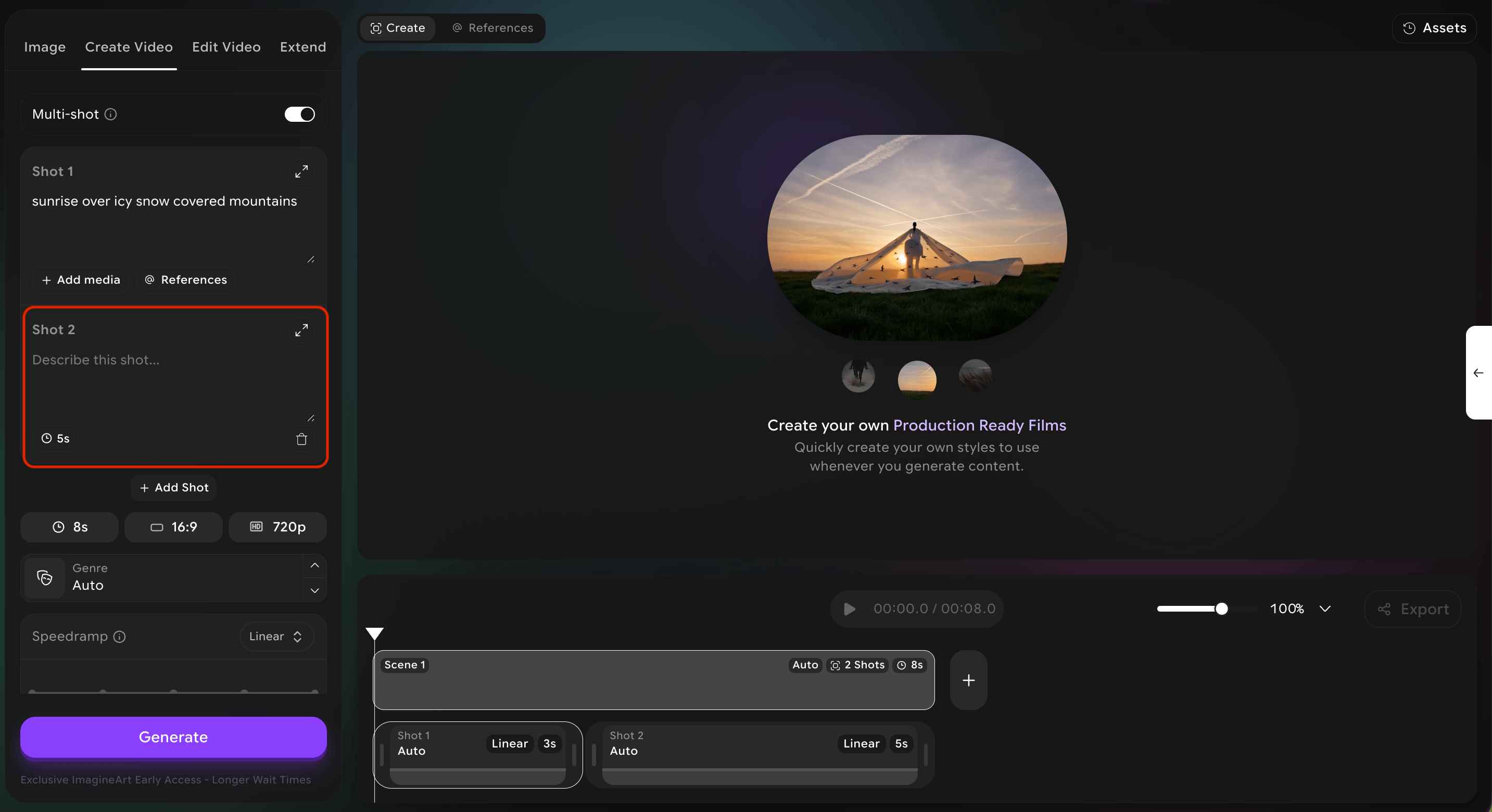
3
Set duration
For each shot, set the duration. The interface will show how many seconds are left in your 15-second budget.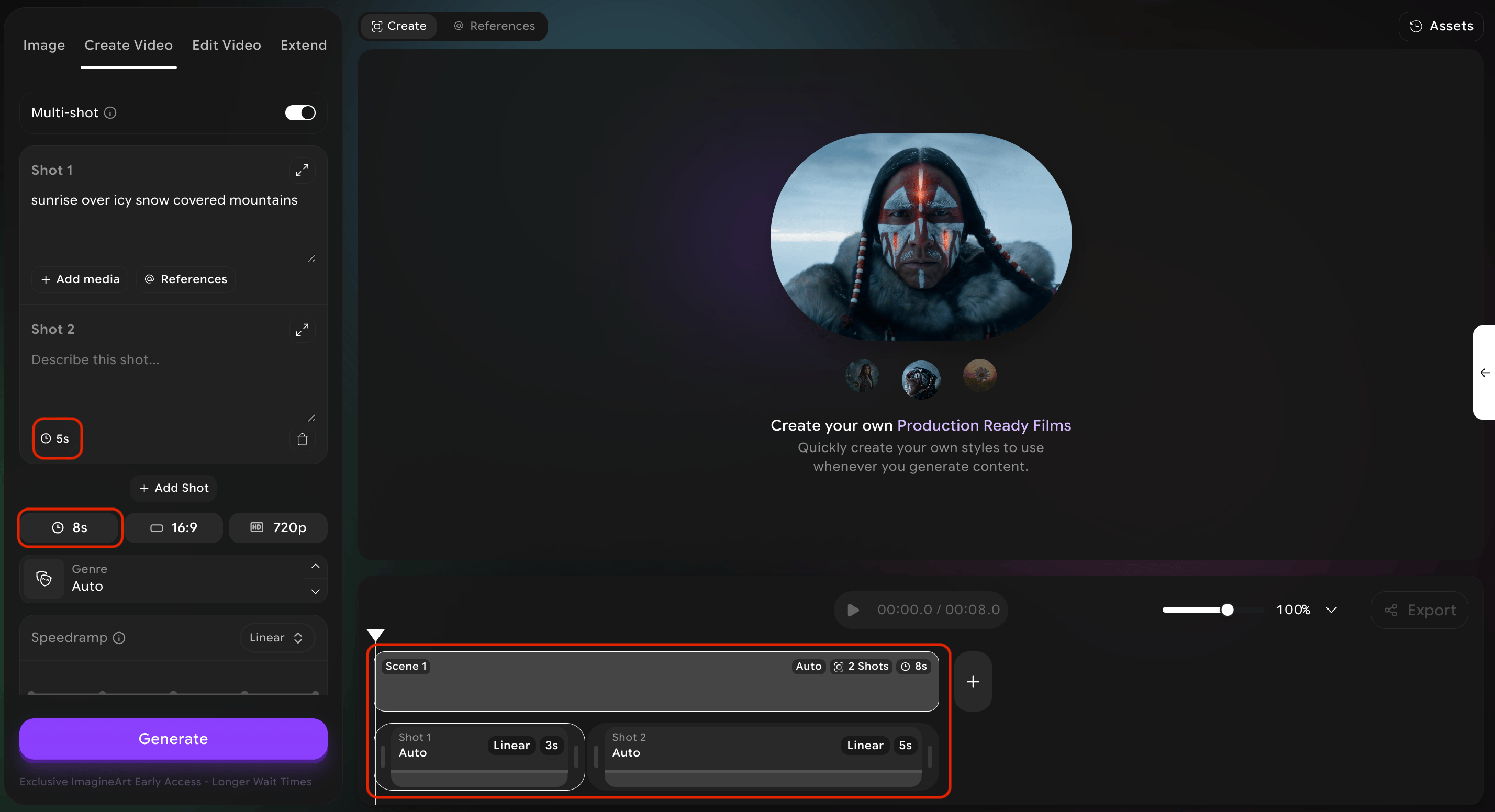
4
Add references and controls (optional)
For each shot, you can also add reference media and adjust cinematic controls (camera movement, speed ramp, etc.).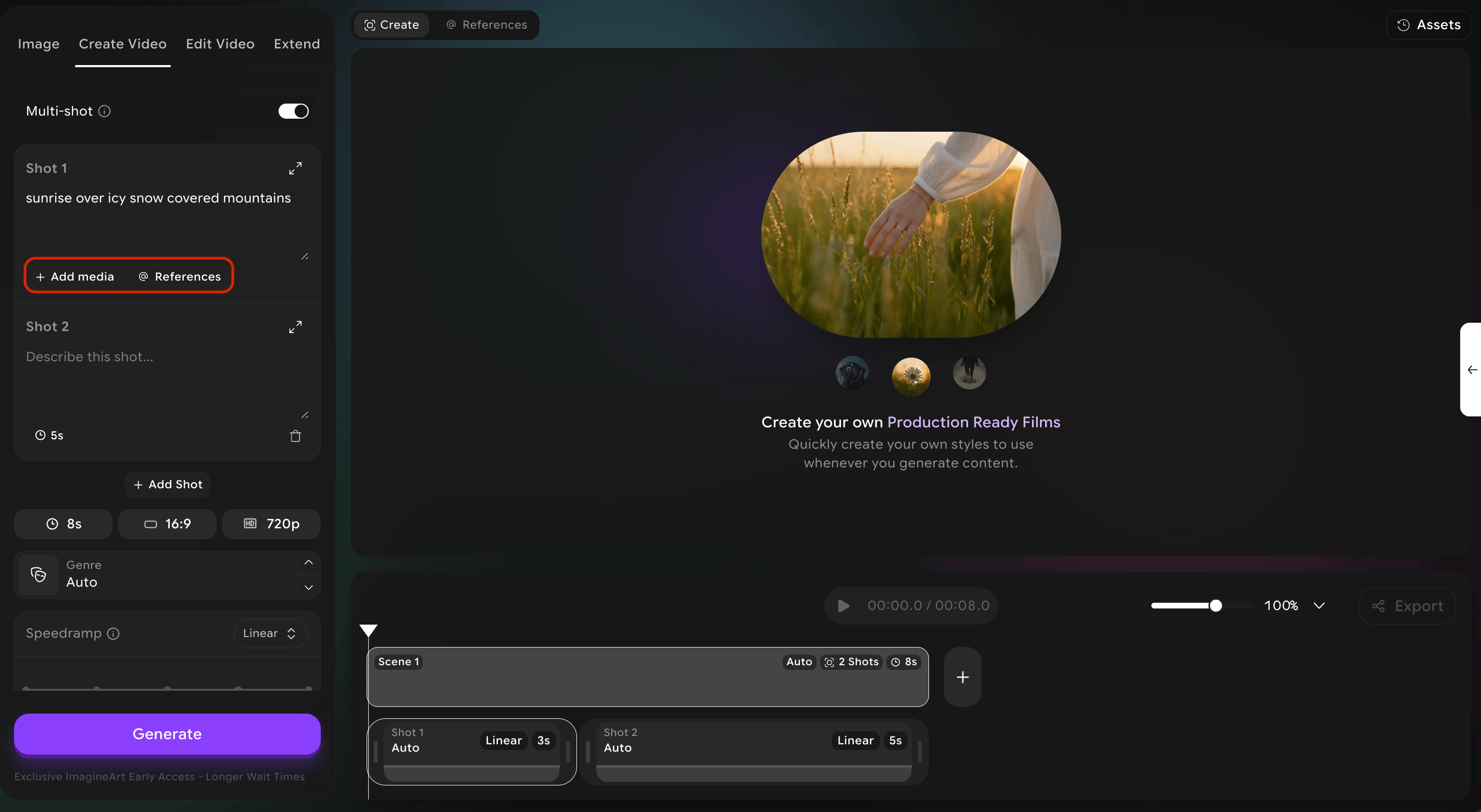
5
Add more shots
Click the ”+” icon in the scene timeline to add another shot. Drag shots to reorder.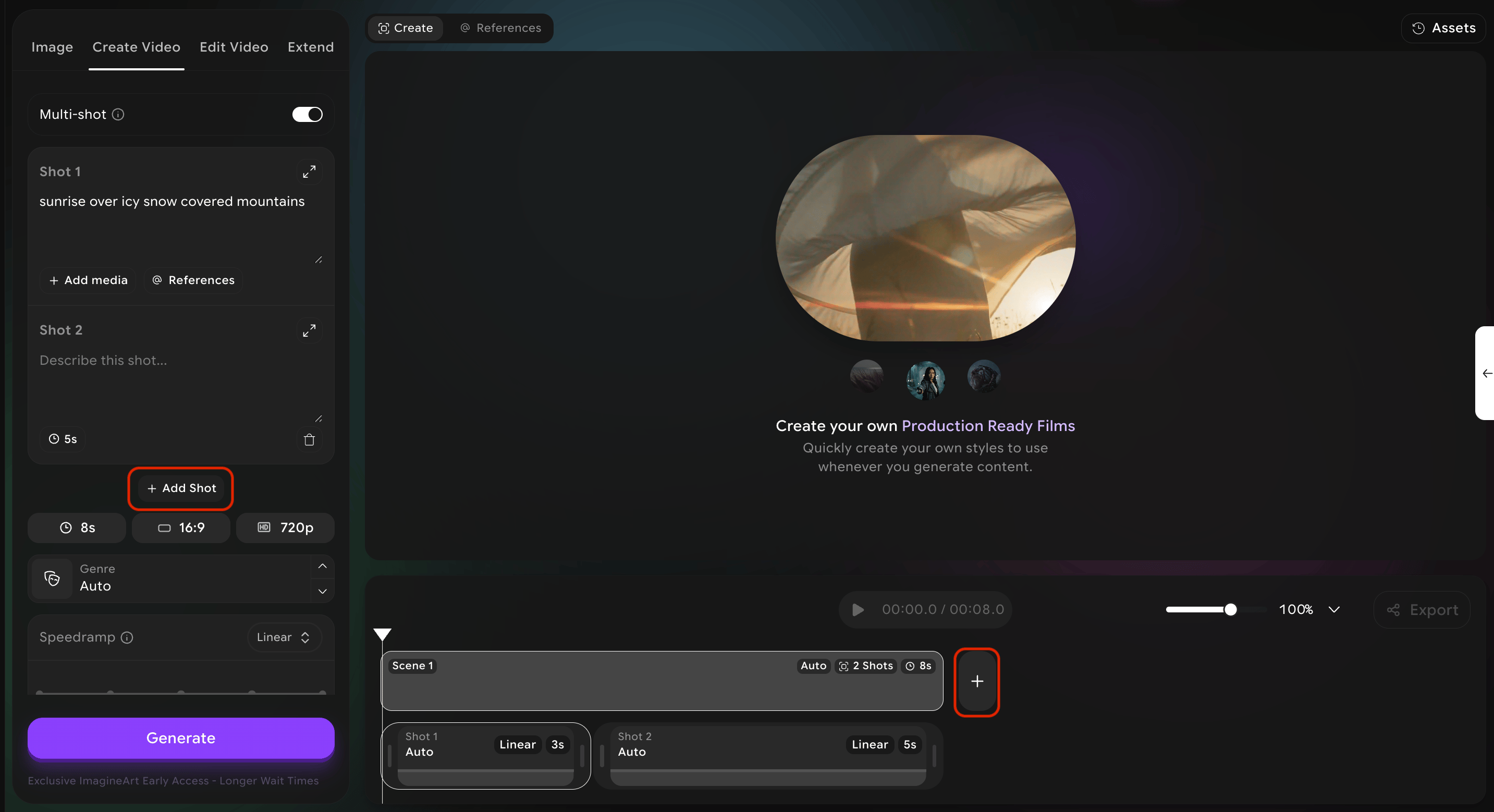
6
Generate
When all shots are configured, hit Generate.
Duration is the only per-shot setting. Aspect ratio, resolution, genre, and speed ramp apply to the whole scene, not to individual shots within it — if you need different genres or ramps for different moments, put them in separate scenes rather than separate shots of the same scene.
Adding audio
The timeline also has an Add Audio button for generating a soundtrack (AI Music) or narration (Text to Speech) directly onto your video — not just attaching a passive audio reference. See Adding Audio for the full walkthrough.Genres
Selecting a genre tells the system what emotional and visual vocabulary to draw from. Genres are stylistic shortcuts — they change lighting, color palette, pacing cues, and reference material the system uses. Pick one that matches the story you are telling.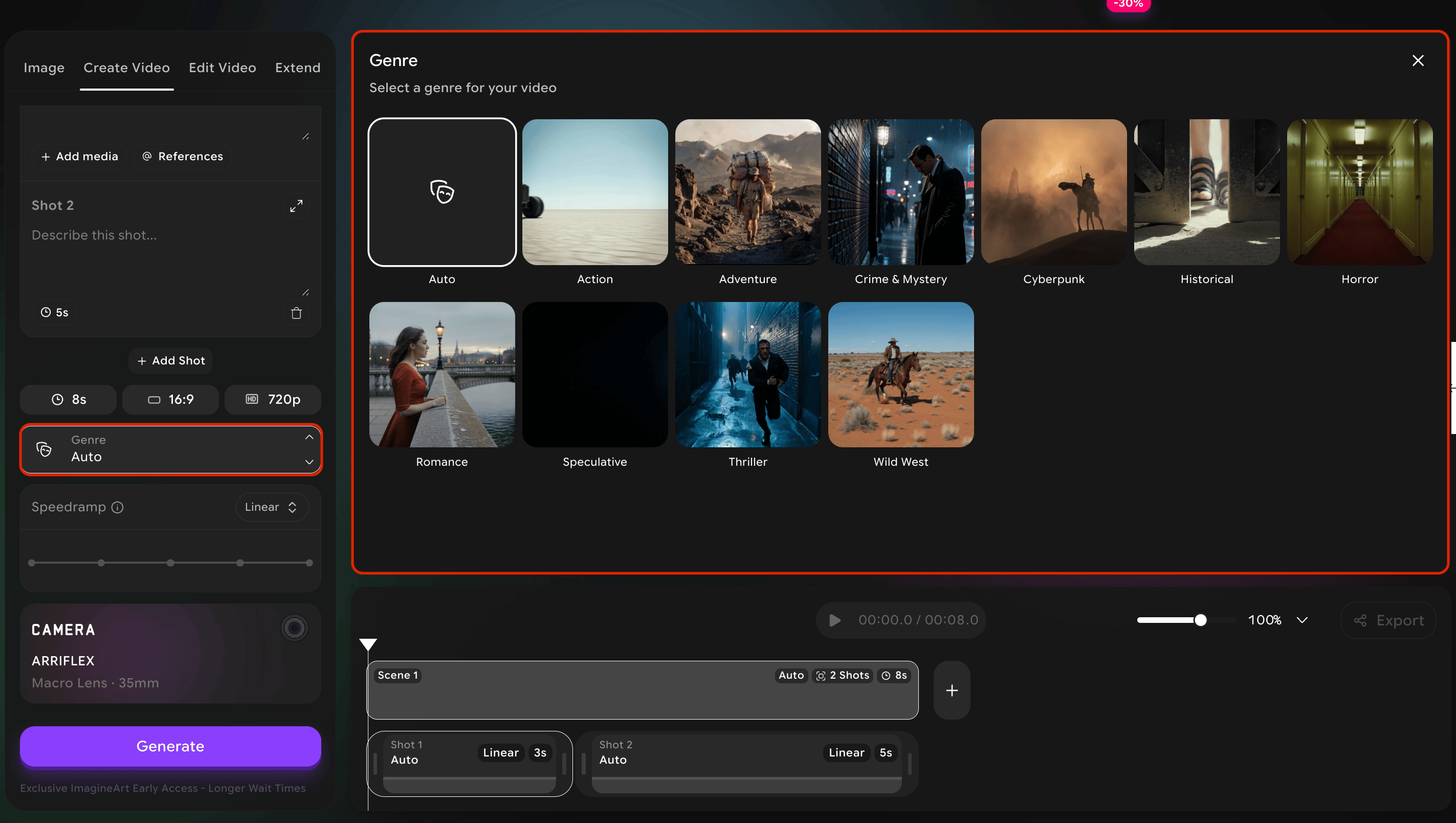
Action
Fast, kinetic, high-energy.Visuals: Sharp contrast, bold color, hard light, motion blur. Use for: chases, fights, sports.
Adventure
Larger than life, journey-driven.Visuals: Wide vistas, golden hour, rich earthy palette. Use for: exploration, hero’s journey moments.
Crime & Mystery
Tense, investigative, shadowed.Visuals: Low-key lighting, muted colors, hard edges. Use for: detective scenes, noir.
Cyberpunk
Neon-soaked, urban dystopian future.Visuals: Magenta & cyan, rain, holograms, dense cities. Use for: sci-fi cities, hacker scenes.
Historical
Grounded, period-accurate, classical.Visuals: Restrained color, soft natural light, era-correct detail. Use for: period pieces, biographical drama.
Horror
Dread, unease, claustrophobic.Visuals: Deep shadows, desaturated palette, off-balance framing. Use for: scary scenes, suspense.
Romance
Warm, intimate, soft.Visuals: Warm light, soft focus, pastel and golden palette. Use for: love scenes, tender moments, dreamy memories.
Speculative
Imaginative, otherworldly, “what if.”Visuals: Surreal color, unusual physics, dreamlike composition. Use for: fantasy, sci-fi, magical realism.
Thriller
Psychological tension, simmering dread.Visuals: Cool tones, tight framing, restrained motion. Use for: suspense, slow-burn dread, paranoia.
Wild West
Dusty, sun-baked, mythic.Visuals: Warm yellows and oranges, harsh sun, wide vistas. Use for: westerns, frontier scenes, desert showdowns.
Camera movements
How the camera moves is part of how your scene speaks. A pan reveals. A dolly emphasizes. A handheld engages. A static shot pauses. Pick the movement that matches the feeling of the moment, not just the geography of it.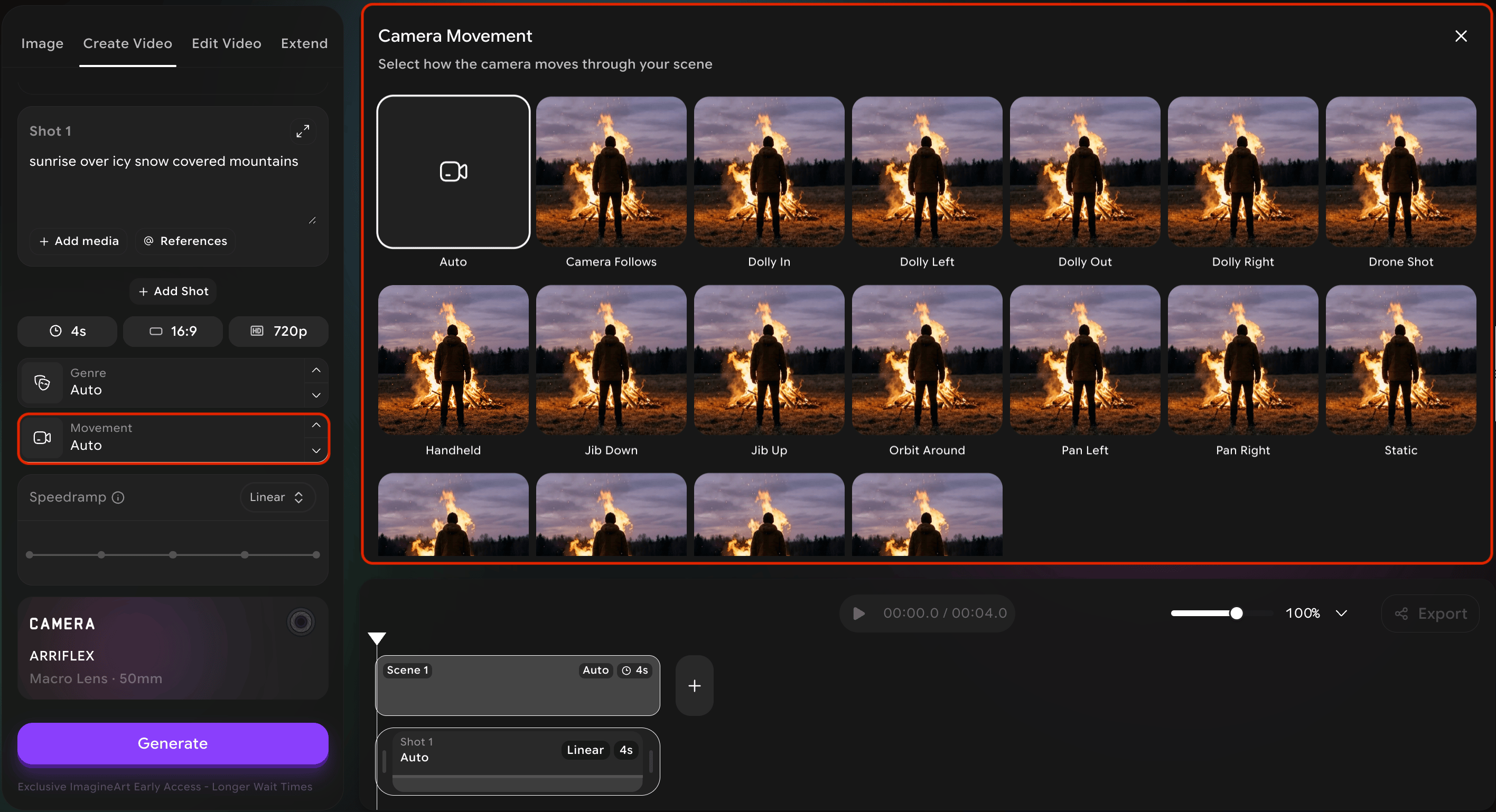
Speed ramps
A speed ramp is a controlled change in playback speed over the course of a shot. Speed ramps are a hallmark of modern cinema — used to emphasize an impact, stretch out a beautiful moment, or accelerate through a transition.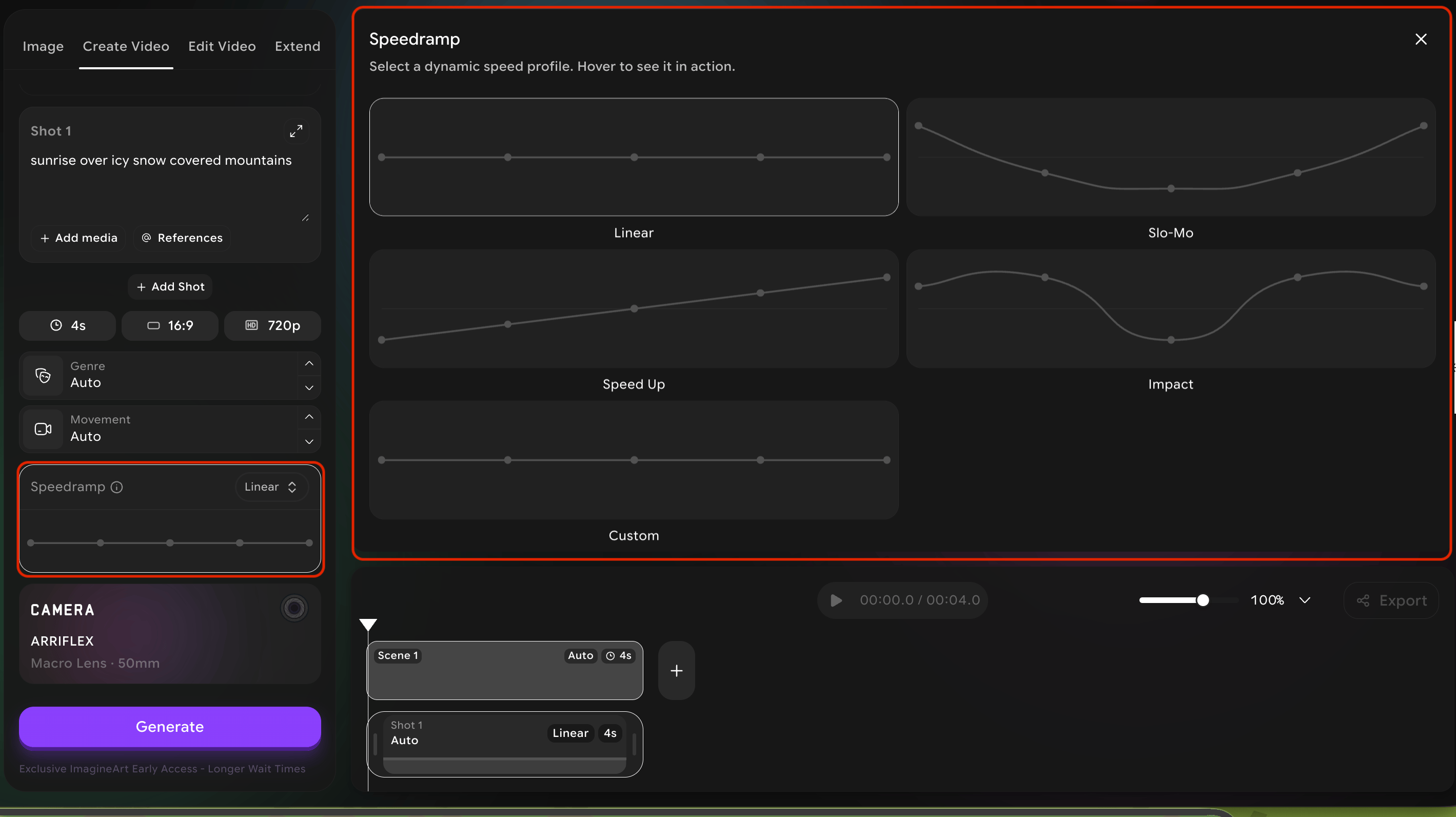
Scene & shot timing
At the bottom of the workspace you will see your timeline — one card per scene, with each shot laid out inside the scene. The timeline is where you control pacing. From the timeline you can:- Adjust the duration of any individual shot by dragging its edges.
- Reorder shots by dragging the cards.
- Add new shots with the ”+” button.
- Delete shots you no longer want.
- Rename scenes for your own organization.