

The newest Flux model
Flux 3 joins Flux.2 Max, Flux.2 Pro, and Flux 1.1 Ultra in the picker. It’s available in both Create and Edit. Looking for video? See Flux 3 for video.Capabilities
Layout control
Positioned for detailed, well-composed images with precise control over layout.
Local edits
In Edit, it changes only what you ask for and leaves the rest of the image untouched.
Flexible framing
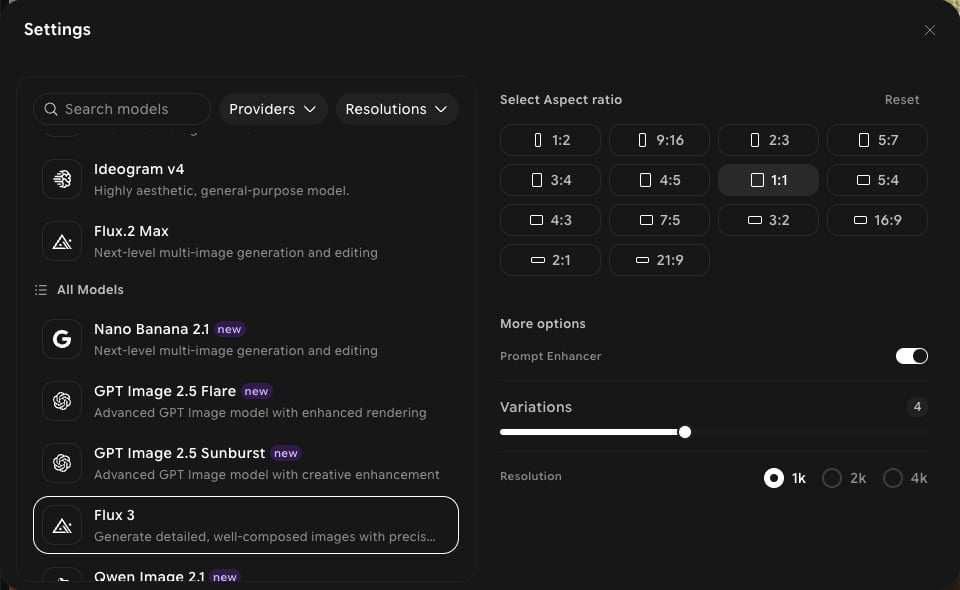
14 aspect ratios, including 5:7, 7:5, 2:1, and 1:2.
Settings in ImagineArt
How to use
1
Open Image Studio
In the sidebar, click Image. Make sure the Create tab is selected in the prompt bar.
2
Select the model
Click the model button in the prompt bar (it shows the current model and aspect ratio) to open Settings, then choose Flux 3.
3
Set your aspect ratio and resolution
Choose an aspect ratio, then pick 1k, 2k, or 4k under Resolution.
4
Write your prompt
Describe the layout you want — where the subject sits, what’s in the foreground and background.
5
Generate
Click Generate and review the output.