

GPT Image 2.5, tuned for rendering
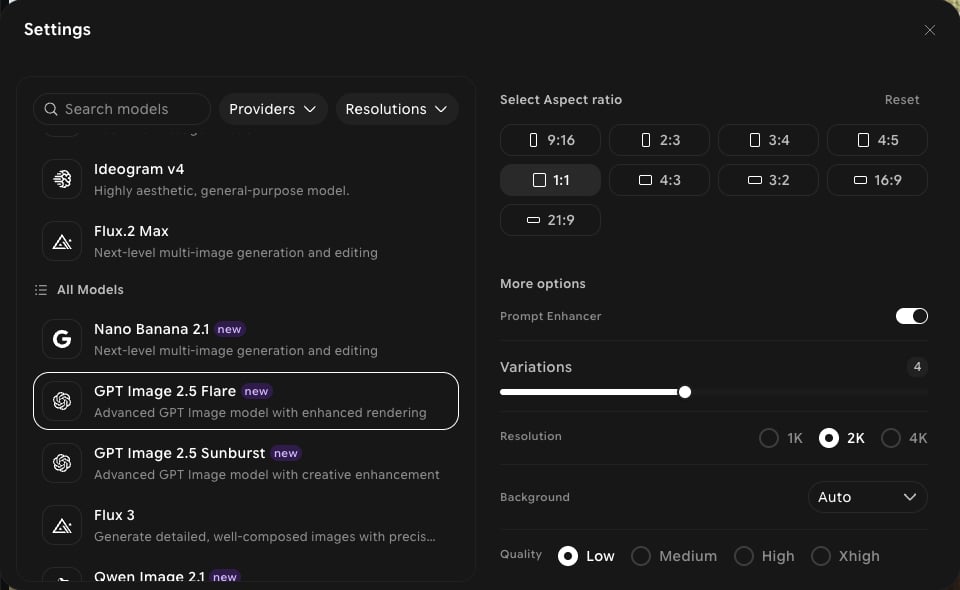
GPT Image 2.5 Flare is one of two GPT Image 2.5 models in the picker. In-app it’s described as “Advanced GPT Image model with enhanced rendering”; its sibling, GPT Image 2.5 Sunburst, is described as “with creative enhancement.” Both share the same settings. For the previous generation, see GPT Image 2.Capabilities
Five quality levels
Choose Low, Medium, High, Xhigh, or Max under Quality.
Up to 4K output
Choose 1K, 2K, or 4K under Resolution.
Background control
Set the Background option (default Auto) in the settings panel.
Settings in ImagineArt
How to use
1
Open Image Studio
In the sidebar, click Image. Make sure the Create tab is selected in the prompt bar.
2
Select the model
Click the model button in the prompt bar (it shows the current model and aspect ratio) to open Settings, then choose GPT Image 2.5 Flare.
3
Set your options
Choose an aspect ratio, a Resolution, a Background option, and a Quality level.
4
Write your prompt
Describe what you want to see, including any exact text you want rendered.
5
Generate
Click Generate and review the output.