

Reliable photorealism at lower cost
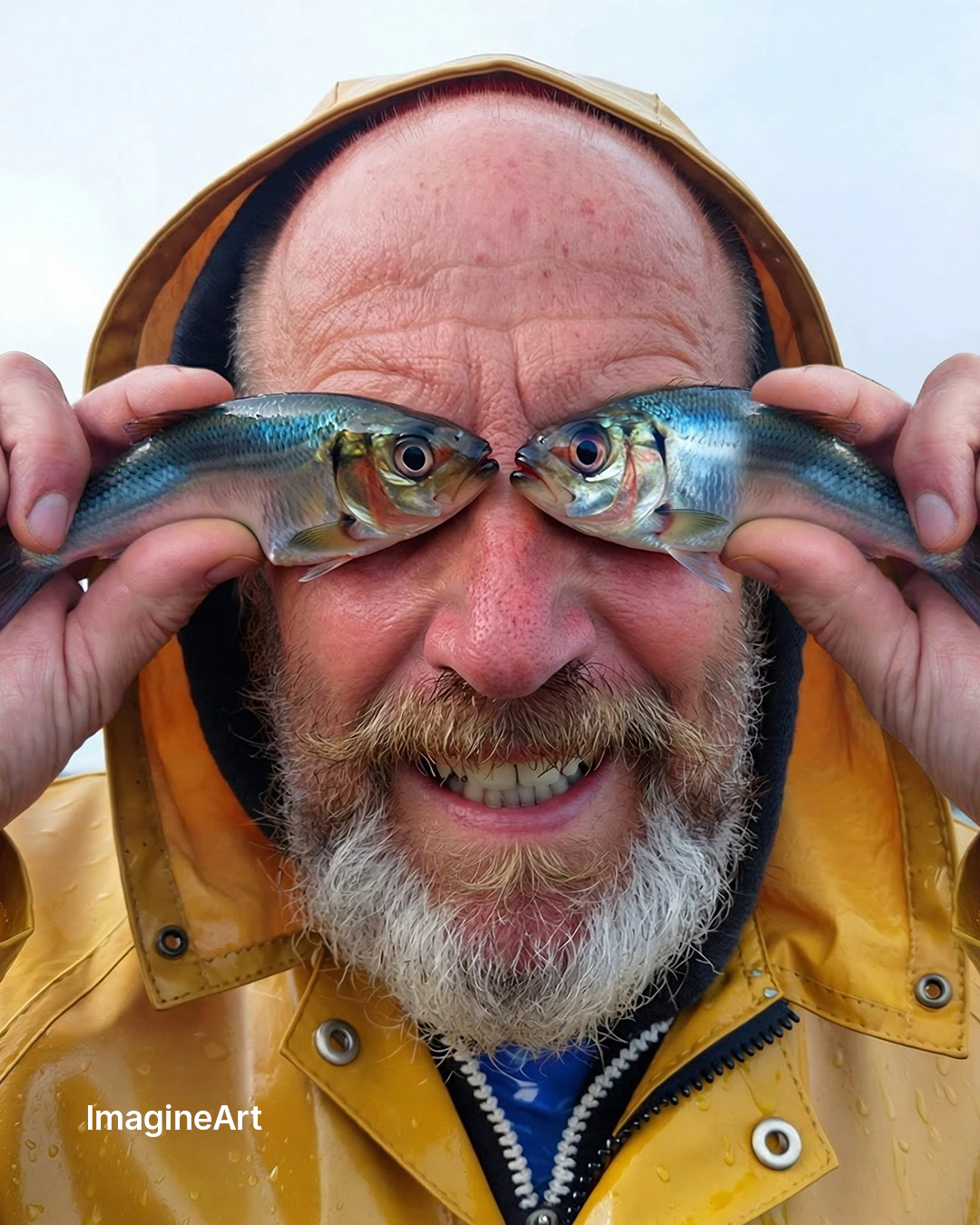
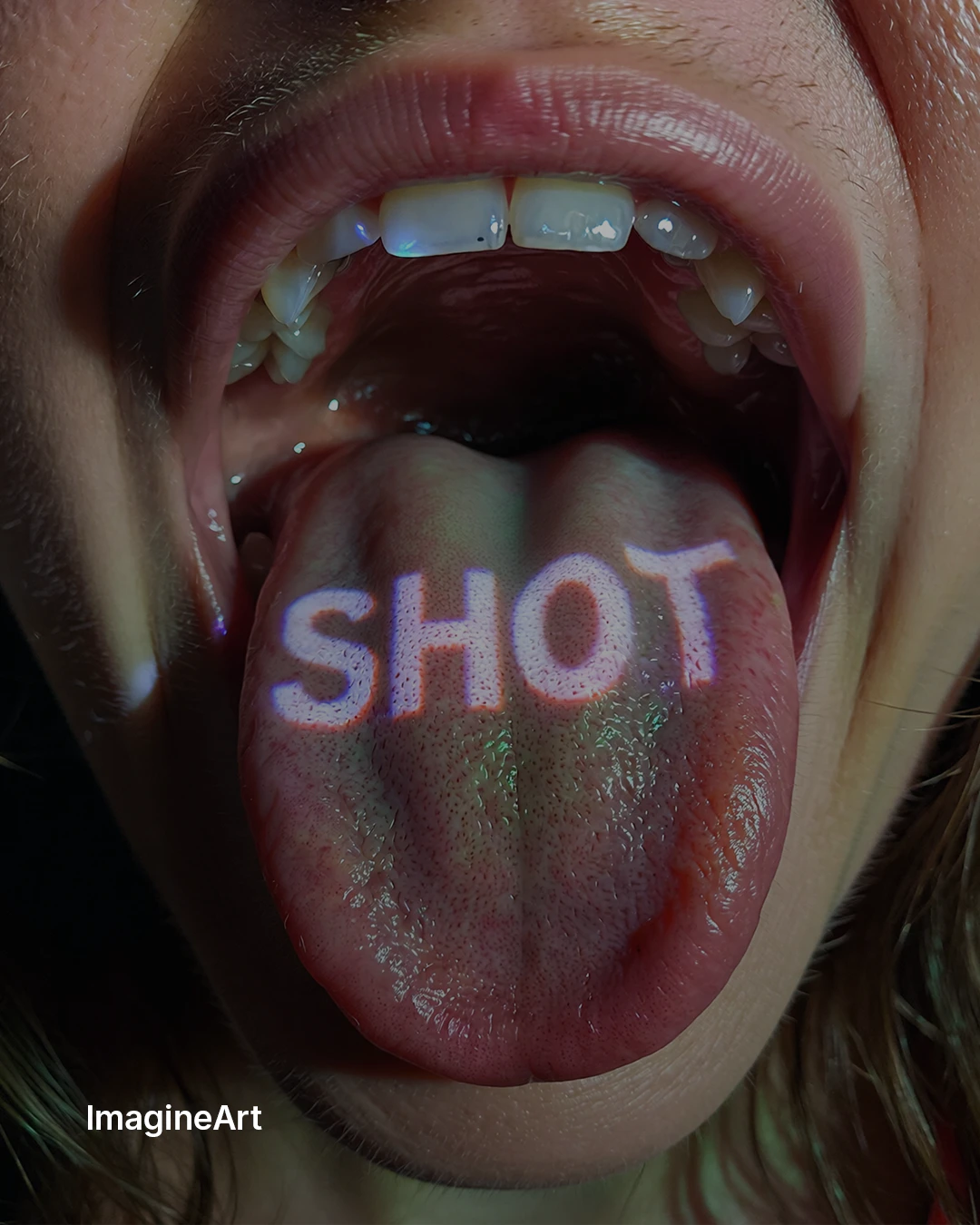
ImagineArt 1.5 shares the same architectural generation as ImagineArt 1.5 Pro — the same photorealistic quality pipeline — at a standard resolution output and lower credit cost. It’s the ideal choice when you need dependable photorealism for portraits, lifestyle images, and realistic scenes without requiring the 4K native output that the Pro variant delivers. A recommended workflow: iterate on ImagineArt 1.5 to validate composition, lighting, and subject, then move to ImagineArt 1.5 Pro for the final high-resolution deliverable.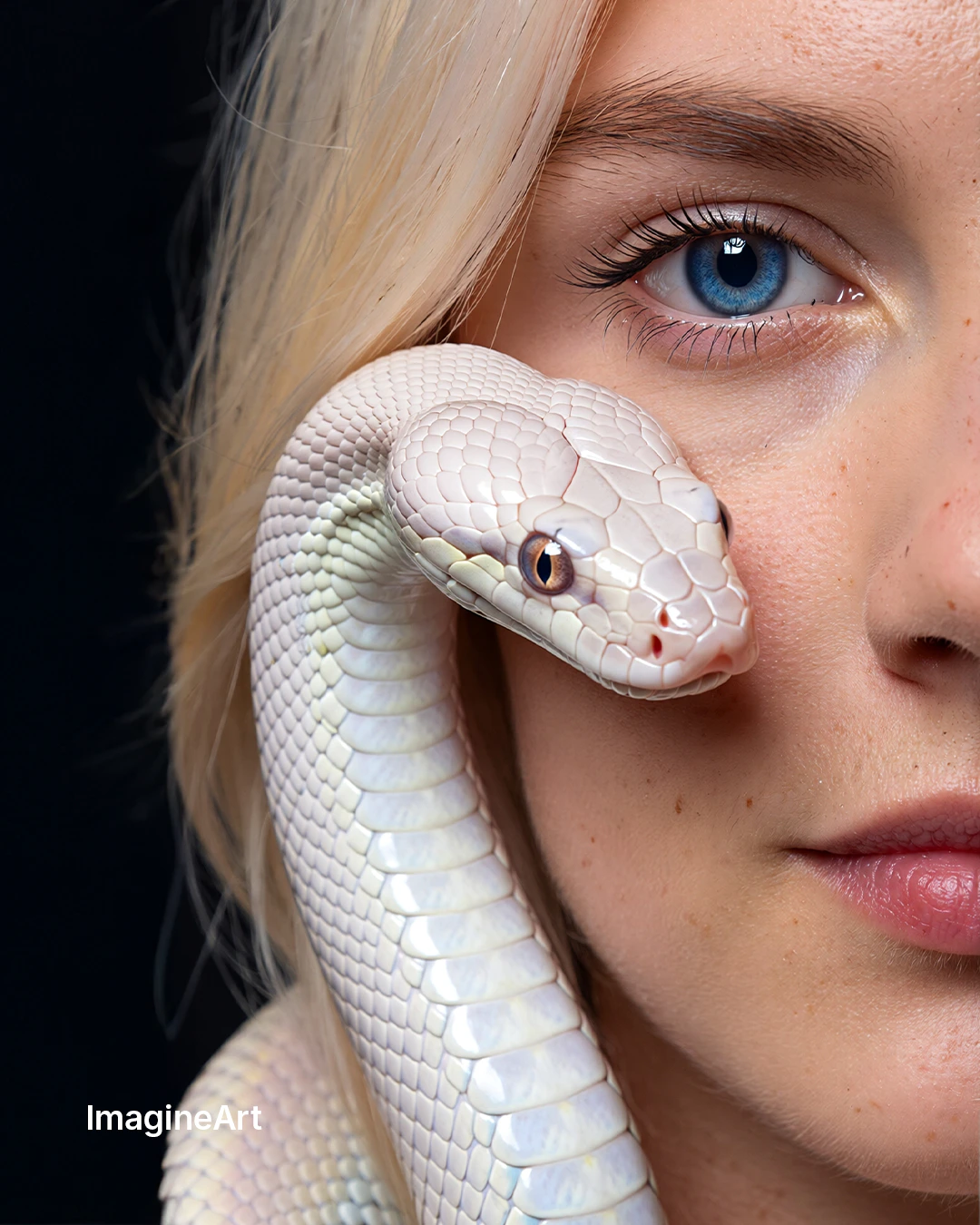
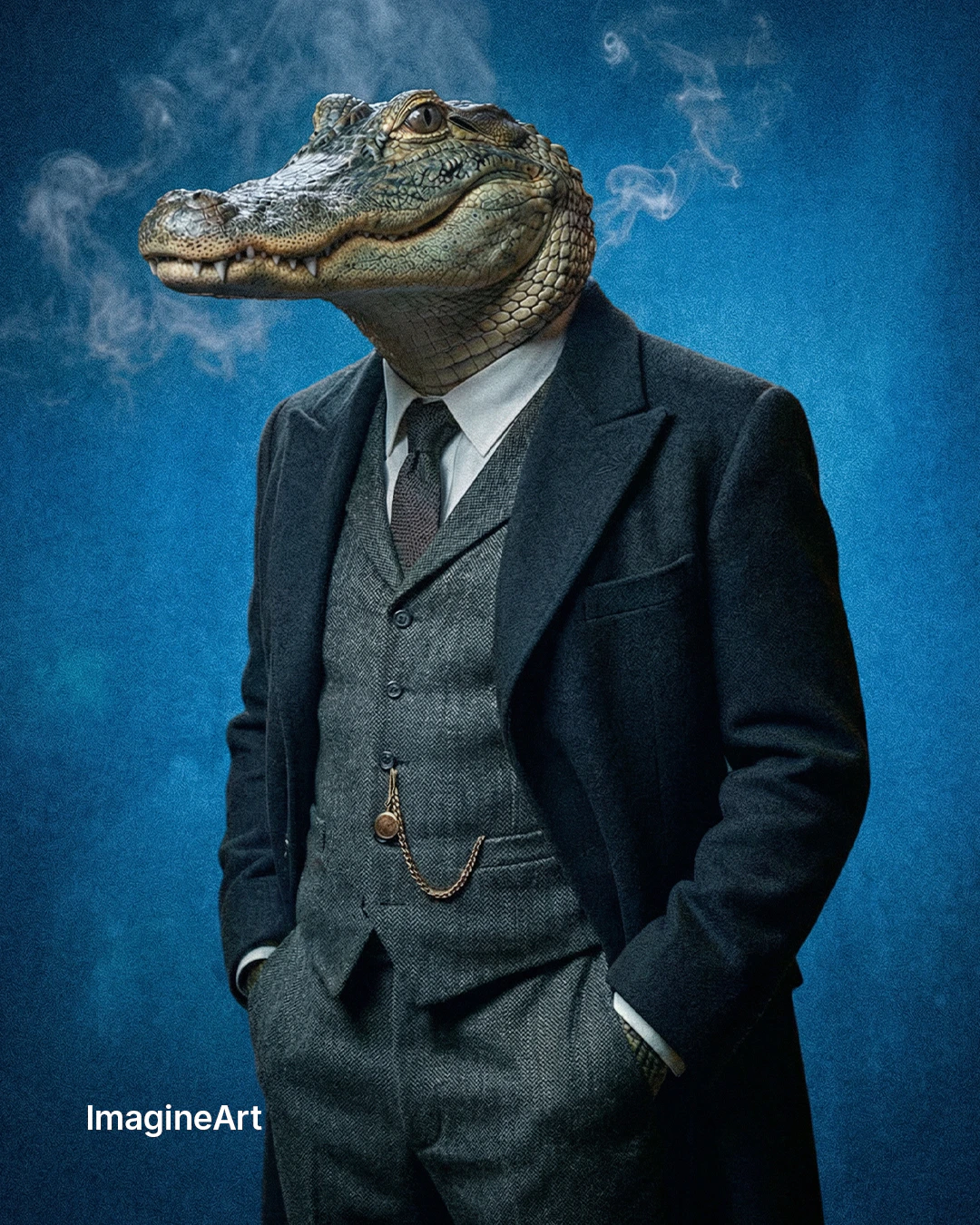
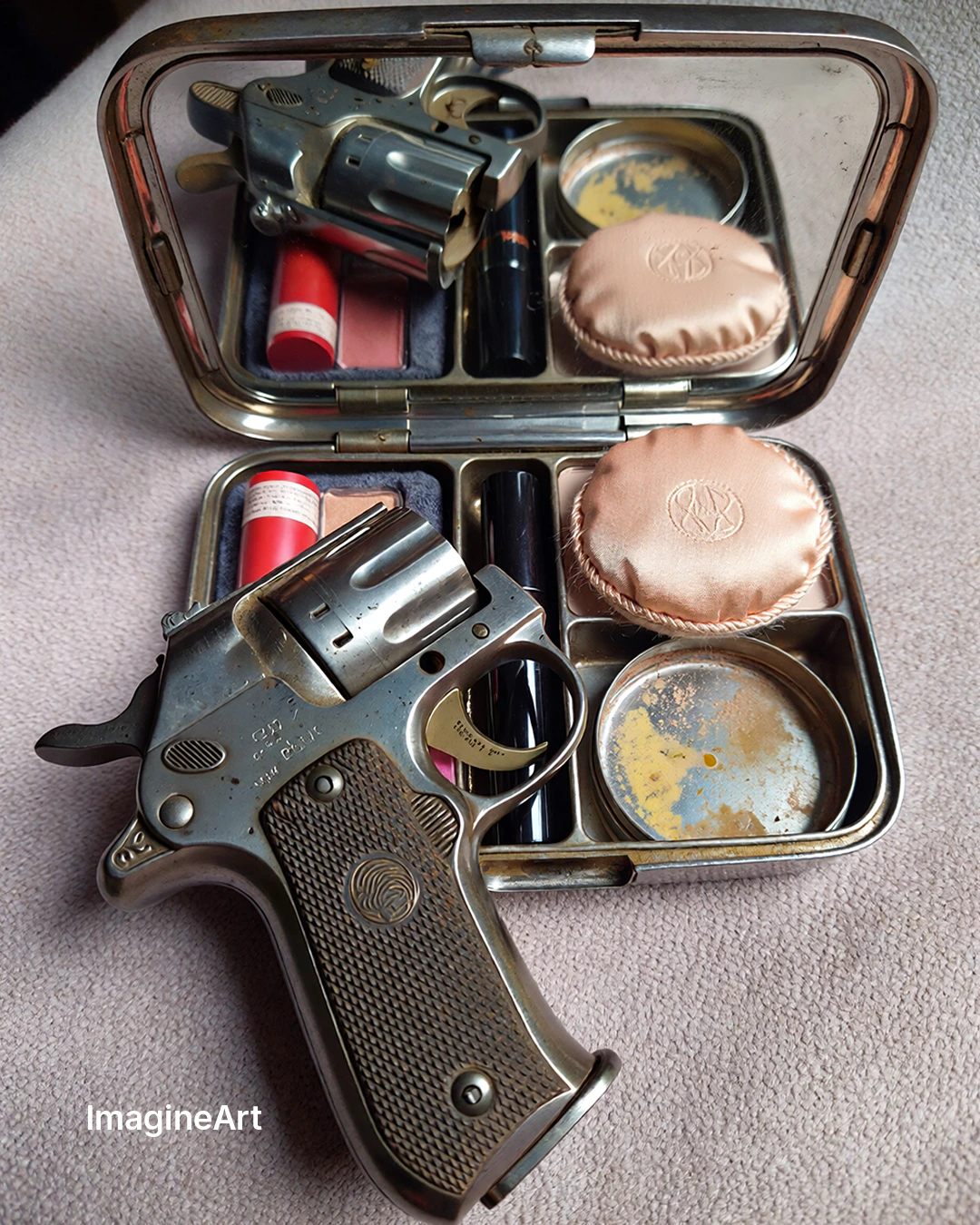
Capabilities
Landscapes and scenes
Natural environments, urban scenes, and architectural compositions with realistic depth, atmospheric perspective, and color accuracy.
Authentic lighting
Proper light behavior: natural shadows, ambient occlusion, golden hour gradients, and studio lighting setups that read as genuinely photographic.
Lower credit cost
More cost-efficient than ImagineArt 1.5 Pro — generate multiple variations to explore direction before committing to a full-resolution final.
How to use
1
Open the AI Image Generator
Go to the ImagineArt AI Image Generator.
2
Select the model
From the model dropdown, choose ImagineArt 1.5.
3
Write your prompt
Use descriptive, photography-style prompts — lighting conditions, environment, subject details, and any stylistic references.
4
Set your aspect ratio
Choose the aspect ratio for your subject — portrait for people, landscape for environments and wide scenes.
5
Generate
Click Generate. Use the lower cost to explore multiple directions before moving to 1.5 Pro for the final output.
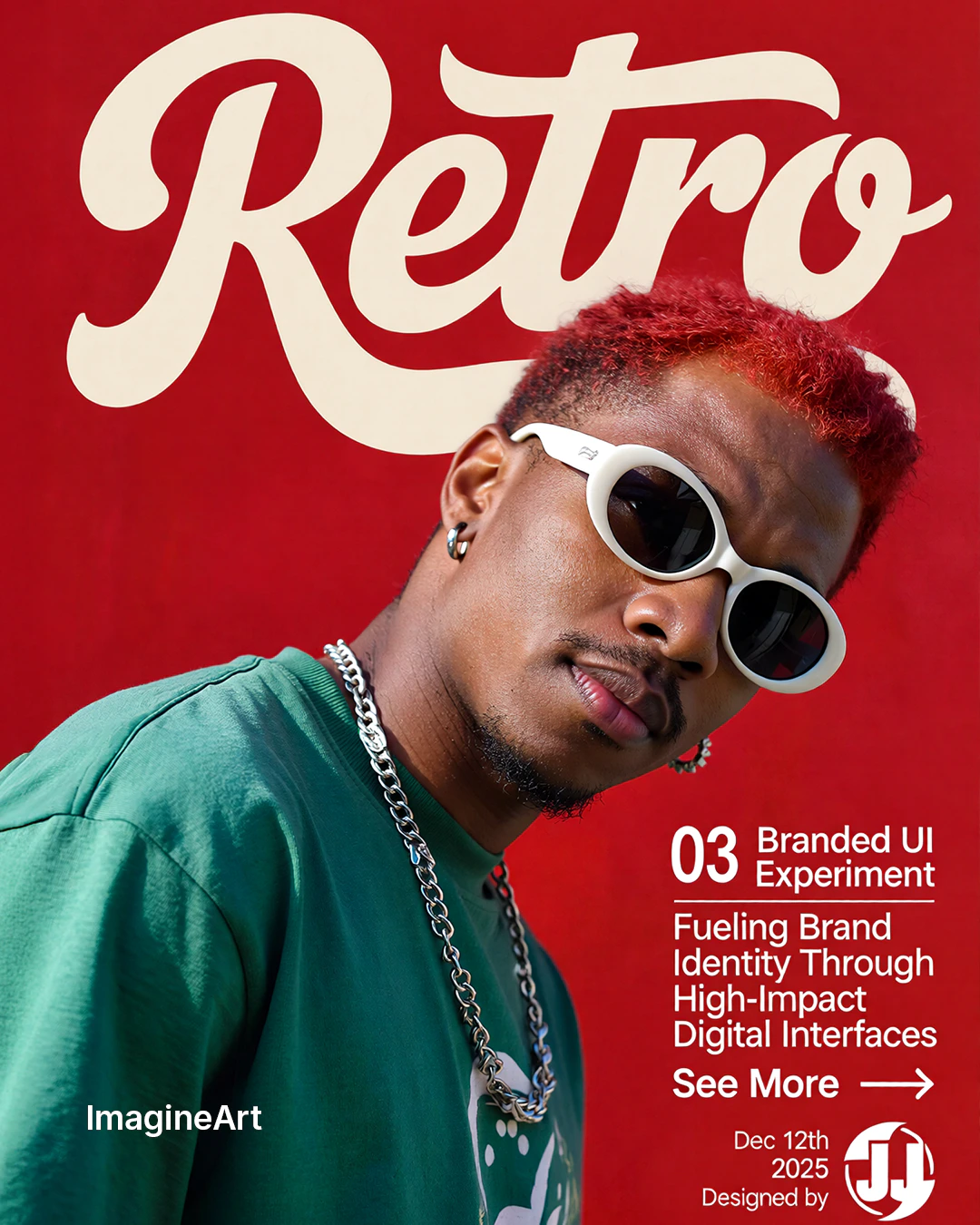
Prompting tips
- Describe the photography style — “Natural light portrait”, “golden hour landscape”, “studio product photography” guide the model toward specific photorealistic aesthetics.
- Camera details improve results — “85mm portrait lens”, “wide-angle establishing shot”, “macro close-up” influence framing and perspective significantly.
- Avoid overly stylized requests — ImagineArt 1.5 is optimized for photorealism. For illustrations or artistic styles, use a different model.
Example prompts
A 30-something man with natural stubble, warm hazel eyes, photographed outdoors in soft overcast light, shallow depth of field, lifestyle portrait photography.
A coastal village at sunset, warm amber light on whitewashed buildings, gentle waves, Mediterranean atmosphere, landscape photography.